A box over text in a PDF hides the text from your eyes. It does not remove the text from the file. Anyone who opens the PDF can still select, copy, search or extract the "hidden" words, and so can every indexer, AI tool and screen reader that reads the file. Real redaction removes the content itself and then checks the places where copies of it hide.
We built a set of test files to show the difference. Every file on this page can be downloaded, so you can repeat each check yourself.
The test: four versions of one invoice
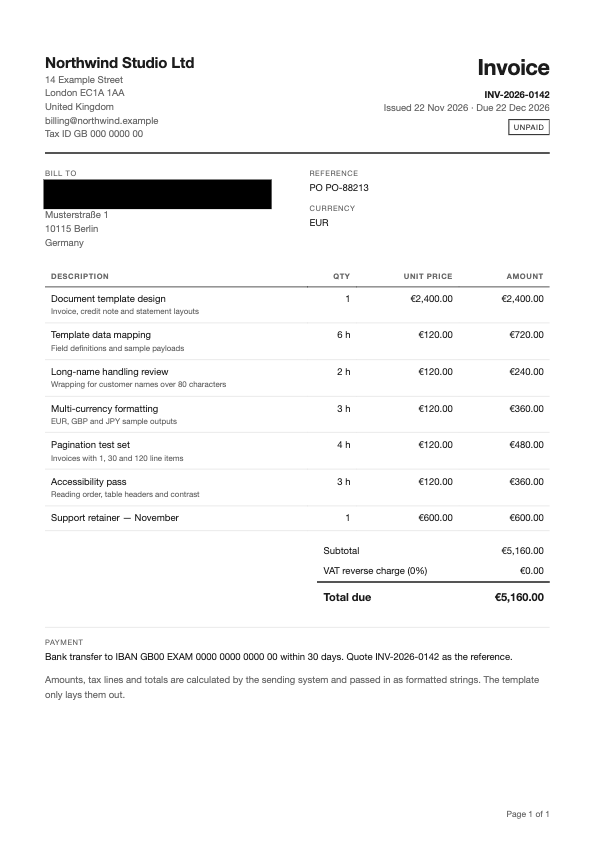
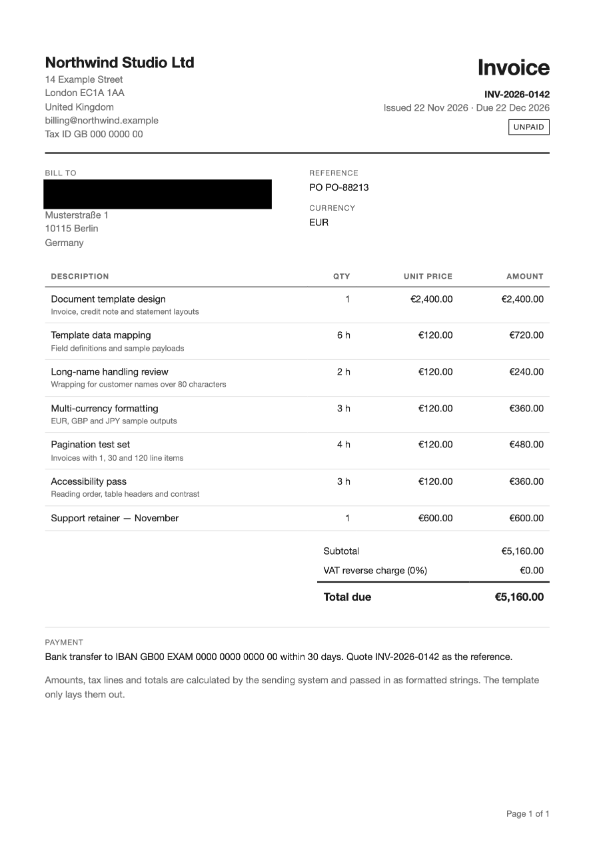
We started from a fictional sample invoice, generated from the invoice template and printed by headless Chromium. The target was the two-line customer name in the "BILL TO" block: Bräuer & Søndergaard Rechtsanwaltsgesellschaft mbH, Internationale Abteilung. We made three edited copies.
| File | What we did | Looks redacted? | Name found by text extraction? | Text drawing operators on the page |
|---|---|---|---|---|
| original.pdf | Nothing | No | Yes | 1,149 |
| whiteout.pdf | White rectangle drawn over the name (pdf-lib) | Yes, blank space | Yes | 1,149 |
| blackbox-overlay.pdf | Black rectangle drawn over the name (pdf-lib) | Yes, black bar | Yes | 1,149 |
| rasterized-redacted.pdf | Page rendered to pixels at 216 dpi, black box painted into the pixels, page rebuilt as one image | Yes, black bar | No | 0 |
The black box version and the rasterized version look the same on screen. Underneath, they are completely different files. In the overlay files, PDF.js extracted all four target words, and a search for "Søndergaard" found a match. The page content still contained the same 1,149 text-drawing operators as the original. The rectangle was simply drawn after them. The rasterized file has no text objects at all, only one image.
Why covering text does not remove it
A PDF page is a list of drawing instructions: set the font, move to a position, show these characters, fill this rectangle. A viewer runs the instructions in order and paints the result. When an editor adds a white or black rectangle, it appends one more instruction, "fill a rectangle here", after the text instructions. The pixels end up covered. The text instructions are untouched.
Copy and paste, search, text extraction and accessibility tools do not read pixels. They read the text instructions. That is why the name came back in full from both overlay files, in the right reading order:
BILL TO Bräuer & Søndergaard Rechtsanwaltsgesellschaft mbH — Internationale Abteilung Musterstraße 1 10115 Ber...The same applies to other kinds of covers: a rectangle annotation, a sticky note dragged over a line, a black highlight, a shape in an image layer. Some of them can also be moved or deleted in an ordinary viewer.
What true redaction has to do
Real redaction removes the information from the file, not just from the screen.
- Remove the marked content. Text under the redaction area is deleted from the page content. Image pixels under the area are overwritten. Vector paths there are removed or clipped. A mark, usually a black box, may then be drawn as a visual cue.
- Remove copies elsewhere in the file. Sensitive values often appear more than once: in the document information dictionary (title, author, subject, keywords), in XMP metadata, bookmarks, comments and annotations, form field values, attachments, hidden layers, alternative text and earlier revisions.
- Save a new file, not an update. If the editor saves with an incremental update, the removed content may still be in the file (see the next section).
- Verify the output with the checks further down this page.
There are two common ways to do step 1.
| Approach | How it works | Trade-offs |
|---|---|---|
| Object-level redaction (dedicated redaction tools) | Deletes the specific text, image and vector content under each mark and keeps the rest of the page as real text | Keeps the rest of the page searchable and small. Depends on the tool handling every content type correctly |
| Rasterization | Renders the page to an image with the box painted in, then replaces the page with that image | Simple and hard to get wrong for the visible page. The whole page loses selectable text, search and accessibility. Files grow: our one-page invoice went from 63,998 to 194,476 bytes |
Printing to paper and scanning back in is a manual version of rasterization, with the same trade-offs and a loss of quality.
Hidden copy number one: metadata
Metadata does not appear on the page, so it is easy to forget. Our overlay files kept the original document information dictionary, including the title "Invoice INV-2026-0142" and the creating software. In a real case, the title or subject field might contain the very name you redacted. The PDF standard has two places for this: the document information dictionary and XMP metadata streams (ISO 32000-1, section 14.3). Check both.
The rasterized file in our test was rebuilt with no information dictionary values and no XMP.
Hidden copy number two: earlier revisions
PDF supports incremental updates. Instead of rewriting a file, a writer can append changes to the end. ISO 32000-1, section 7.5.6, says that in an incremental update "changes shall be appended to the end of the file, leaving its original contents intact." Everything that was there before is still in the file.
We built a small memo to show what that means (incremental-update.pdf). Revision 1 contains the line "Settlement amount: EUR 48,500 (confidential)". Revision 2, appended as an incremental update, replaces the page content with a version that omits the line.
- Opened normally, the file shows and extracts only the revised text. Searching for "48,500" finds nothing.
- Searching the raw bytes for "48,500" also finds nothing, because the page content is compressed. A quick
grepon a file proves nothing either way. - The file contains two
%%EOFmarkers. Keeping only the bytes up to the first one gives back revision 1 (incremental-update.rev1-recovered.pdf), and the confidential line extracts in full. - Rewriting the file with
qpdf incremental-update.pdf out.pdfwrites only the objects reachable from the latest revision. The rewritten copy has one%%EOF, and the old line was gone from every decompressed object. Its metadata, including the author "Example Co. legal team", was still there, though. Rewriting removes old revisions, not metadata.
Some editors append changes this way to save time, and files with digital signatures are normally updated incrementally so that earlier signatures stay valid. If a tool's redaction function does not force a full rewrite, do one yourself.
How to verify a redacted PDF
Run these checks on the file you are about to send, not on the working copy.
- Search for every redacted term, including partial words, ID numbers without spaces, and alternative spellings.
- Select all and copy the text on each redacted page, then paste it into a plain text editor. Look for anything that should not be there.
- Extract text with a different tool from the one you used to redact, because tools differ in what they treat as text.
- Check the metadata: title, author, subject, keywords and XMP.
- Check for earlier revisions: more than one
%%EOFmarker is a strong hint. Rewrite the file to drop them. - Check for other carriers: annotations, form fields, attachments, bookmarks and layers.
- Look at the result at high zoom to make sure the marks cover what they should, and nothing extra was exposed at the edges.
We wrote a small checker that does steps 1 and 4 to 6 in one pass, using PDF.js for text and pdf-lib for structure. It prints a JSON report and exits with code 1 if any term is found:
node scripts/research/redaction/verify.mjs blackbox-overlay.pdf "Søndergaard"{
"file": "blackbox-overlay.pdf",
"pages": 1,
"termHits": [{ "page": 1, "term": "Søndergaard" }],
"infoDictionary": { "Title": "Invoice INV-2026-0142", "Producer": "pdf-lib (https://github.com/Hopding/pdf-lib)" },
"xmpMetadata": false,
"eofMarkers": 1,
"annotations": 0,
"acroFormFields": 0,
"embeddedFiles": false,
"optionalContent": false
}The output above is shortened: the full report also lists the Creator and dates. Running the same command on rasterized-redacted.pdf reported no hits and an empty information dictionary. On incremental-update.pdf it reported no text hits but two %%EOF markers, the clue that sends you looking for an old revision. The script is in the repository at scripts/research/redaction/verify.mjs.
qpdf is useful for the structural checks and the rewrite:
# Rewrite the file so only the latest revision remains
qpdf redacted.pdf redacted-clean.pdf

# Decompress everything into a readable form, then search it
qpdf --qdf --object-streams=disable redacted-clean.pdf - | grep -c "48,500"

# Count end-of-file markers (more than one usually means incremental updates)
grep -c "%%EOF" redacted.pdfA grep count of zero on decompressed output is a useful signal, but text in PDFs is often stored as font glyph codes rather than readable characters, so it is not proof. Text extraction (steps 1 to 3) is the more reliable check.
Redacting with SublimePDF
The Redact PDF tool uses the rasterization approach. Each page where you place a redaction box is rendered to an image with the box painted in, so text under the box is removed from that page. Those pages lose selectable text, and document metadata is cleared. Pages without boxes keep their text. The rasterized-redacted.pdf fixture above was made by our test script to mirror this approach. It is not output from the tool itself, so run the checks above on your own result.
The Edit PDF tool has a whiteout feature for covering mistakes or stray marks. Whiteout is not redaction: as the test shows, covered text stays extractable.
The safest redaction is never including the data
If the PDF comes from a system you control, do not create a full copy and redact it afterwards. Generate a second copy from the same template with the sensitive values replaced in the data. We re-rendered the sample invoice with the customer name set to "[Redacted]" before rendering (generated-redacted-copy.pdf). The checker found no trace of the name, because it was never in the file.
With the SublimePDF API, that is the same template with different data. Replace the sensitive fields in a copy of the data, then send it exactly as you send the full version, either with the template's HTML or with the ID of a template saved in the app. These commands use the sample template.html and data.json:
# Copy the data with the customer's name and address replaced
jq '.customer.name = "[Redacted]" | .customer.address = ["[Redacted]"]' data.json > data-redacted.json

# Option 1: send the HTML and the redacted data
jq -n --rawfile html template.html --slurpfile data data-redacted.json '{html: $html, data: $data[0]}' \
| curl -sS -X POST "https://api.sublimepdf.com/v1/html-to-pdf" \
  -H "Authorization: Bearer $SUBLIMEPDF_API_KEY" \
  -H "Content-Type: application/json" \
  --data-binary @- -o invoice-redacted.pdf

# Option 2: send a saved template's ID and the redacted data
jq '{data: .}' data-redacted.json \
| curl -sS -X POST "https://api.sublimepdf.com/v1/templates/$SUBLIMEPDF_TEMPLATE_ID/generate" \
  -H "Authorization: Bearer $SUBLIMEPDF_API_KEY" \
  -H "Content-Type: application/json" \
--data-binary @- -o invoice-redacted.pdfOnly the fields you replace change; everything else the template needs is still in the data. Templates and placeholders are covered in the template variables guide, and the HTML templates and JSON data tutorial explains both request types. Run the verification checks on this file too: metadata such as the document title can still contain values you did not mean to share. In the sample template, the title is built from the invoice number, not the customer name.
Summary
| Question | Overlay (whiteout or black box) | True redaction |
|---|---|---|
| Hidden on screen and in print? | Yes | Yes |
| Hidden from copy, search and extraction? | No | Yes |
| Removes metadata and earlier revisions? | No | Only if the tool does it, or you do |
| Safe for personal or confidential data? | No | Yes, after verification |
Rules about what must be redacted vary by jurisdiction and context. US federal courts, for example, require personal identifiers such as most digits of a Social Security number to be redacted from filings. This article explains the technical side only and is not legal advice. For passwords and encryption, which protect a whole file rather than removing parts of it, see the PDF security and encryption guide.
Sources
- ISO 32000-1:2008 Document management - Portable document format - Part 1: PDF 1.7 (Adobe public copy), 7.5.6 Incremental Updates and 14.3 Metadata · accessed 23 November 2026
- qpdf manual: command-line options · accessed 23 November 2026
- United States Courts: FAQs, Case Management / Electronic Case Files (personal identifier redaction) · accessed 23 November 2026