"Compress PDF" promises usually come with one large percentage. That number tells you almost nothing, because how much a PDF shrinks depends on what is inside it. We built a small corpus of six PDFs (text, photos, a simulated scan, and two files that were already compressed), ran six methods on each one, and measured output size, text preservation, visual change and runtime. Every input, every output and the measurement script are published, so you can check the numbers or run the test on your own files.
This is a small benchmark run on one machine on 22 November 2026. Read it as evidence about how each method behaves, not as a promise of a percentage you will get.
Key findings
- Lossless restructuring helped text PDFs a little and image PDFs not at all. qpdf with object streams and maximum Flate compression cut the two Chromium-printed text PDFs by 9.7% and 11.3%. On the photo and scan files it saved 0.0% and 0.1%.
- Re-encoding JPEG images does the heavy lifting, at the cost of image fidelity. Re-encoding at JPEG quality 60 shrank the photo PDF by 72.6% to 75.6% and the simulated scan by 53.0% to 62.4%, depending on the encoder.
- Some operations made files bigger. Linearization ("fast web view") added 0.9% to 1.5%. Re-saving an already optimized file with pdf-lib added 0.2%. Re-encoding JPEGs that were already low quality, without checking the result, added 4.4%.
- Text survived every method. Extracted text was identical to the input in all 36 outputs, and every output passed
qpdf --check.
The corpus
All six inputs are self-produced or synthetic, so they can be shared freely. Download them from /samples/fixtures/compression-benchmark/corpus/.
| File | Type | Pages | Size (bytes) | What it contains |
|---|---|---|---|---|
| text-invoice.pdf | Text | 1 | 63,998 | Copy of the sample invoice printed by headless Chromium: text and vector shapes, no raster images |
| text-report.pdf | Text | 2 | 113,951 | Copy of the sample report: text and tables |
| image-photos.pdf | Photos | 4 | 5,497,757 | One synthetic photo-like JPEG per page (2400 x 1600 px, quality 0.92) plus a caption |
| scan-invoice.pdf | Scanned | 4 | 1,272,702 | The 4-page long invoice rasterized at 200 dpi, grayscale, with noise and 0.4 degree skew, JPEG quality 0.85, no text layer |
| image-lowq.pdf | Photos, already compressed | 2 | 478,015 | Two synthetic photos already saved at JPEG quality 0.45 |
| text-report-preoptimized.pdf | Text, already optimized | 2 | 102,946 | text-report.pdf after the qpdf lossless method below |
The last two files are there on purpose. Real users often try to compress a file that someone has already compressed, and that is where tools tend to disappoint.
The methods
| Method | What it does | Lossy? |
|---|---|---|
qpdf-lossless | qpdf --object-streams=generate --compress-streams=y --recompress-flate --compression-level=9 | No |
qpdf-images-q60 | The above plus --optimize-images --jpeg-quality=60 | Yes, images only |
pdflib-resave | pdf-lib PDFDocument.load() then save({ useObjectStreams: true }) | No |
chrome-jpeg-q60 | Every DCTDecode (JPEG) image decoded in Chrome and re-encoded with canvas convertToBlob at quality 0.6, kept only if smaller, then saved with pdf-lib | Yes, images only |
chrome-jpeg-q60-always | Same re-encode, but always replaced, with no "only if smaller" check | Yes, images only |
qpdf-linearize | qpdf --linearize (web-optimized output) | No |
chrome-jpeg-q60 uses the same general approach as the browser-based Compress PDF tool: re-encode embedded JPEG images in the browser, leave text and vector content alone, and re-save. It is our emulation in a test script, not the tool itself, and its setting (quality 60, original dimensions) is not one of the tool's three levels. qpdf's own help text says --optimize-images uses JPEG "as long as doing so decreases the size in bytes of the image", so it has the same guard built in.
Linearization is not compression. We included it because "optimize for web" and "compress" are often confused in PDF software menus.
Tool versions: qpdf 12.4.2, pdf-lib 1.17.1, pdfjs-dist 5.7.284, Google Chrome 158.0.8127.36 driven by playwright-core 1.65.1, Node.js 24.5.0, on an Apple M4 Max laptop running macOS 27.0. Ghostscript was not installed, so it was not tested.
Results: size change
Change in file size compared with the input (negative means smaller).
| File | qpdf-lossless | qpdf-images-q60 | pdflib-resave | chrome-jpeg-q60 | chrome-jpeg-q60-always | qpdf-linearize |
|---|---|---|---|---|---|---|
| text-invoice | -11.3% | -11.3% | -9.6% | -9.6% | -9.6% | +1.5% |
| text-report | -9.7% | -9.6% | -7.3% | -7.3% | -7.3% | +0.9% |
| image-photos | 0.0% | -72.6% | 0.0% | -75.6% | -75.6% | 0.0% |
| scan-invoice | -0.1% | -53.0% | -0.1% | -62.4% | -62.4% | 0.0% |
| image-lowq | -0.1% | -0.1% | -0.2% | -0.2% | +4.4% | +0.1% |
| text-report-preoptimized | 0.0% | 0.0% | +0.2% | +0.2% | +0.2% | +1.5% |
In absolute terms, the photo PDF went from 5,497,757 bytes to 1,340,071 bytes with the Chrome re-encode and to 1,508,195 bytes with qpdf's image optimization. The scan went from 1,272,702 bytes to 478,627 and 598,134 bytes. The two text PDFs only ever lost between 6,139 and 11,005 bytes. The complete byte counts for all 36 outputs are in results.json.
Why text PDFs barely move
Chromium already compresses page content streams and embeds subset fonts when it prints to PDF, so there is little redundancy left. The savings came from packing objects into compressed object streams and recompressing Flate data at level 9. A JPEG re-encoder has nothing to work on: the text files contain no JPEG images, so the image-based methods fell back to a plain re-save.
Why image PDFs barely move losslessly
JPEG data is already compressed, and Flate cannot shrink it further. Lossless tools can only save on the small amount of structure around the images. The only way to make a photo-heavy PDF much smaller is to throw away image information, by lowering JPEG quality, by downsampling, or both.
Results: what changed in the output
We checked three things for every output.
- Text: text extracted with PDF.js was identical to the input's extracted text in all 36 outputs. No method touched text content.
- Structure: every output passed
qpdf --check. Page counts were unchanged. - Visual change: we rendered page 1 of each input and output with PDF.js in Chrome at 1.5x (108 dpi) and computed PSNR, a pixel-difference score where higher means closer to the original. The lossless methods produced identical renders. The JPEG quality 60 methods scored 41.2 dB on the photo page and 43.1 dB on the scan page, with a mean absolute difference of about 1.1 to 1.4 out of 255 per channel.
Both lossy encoders produced the same PSNR and mean difference on these pages, but Chrome's files were 11% to 20% smaller than qpdf's. We did not investigate the encoding differences behind that.
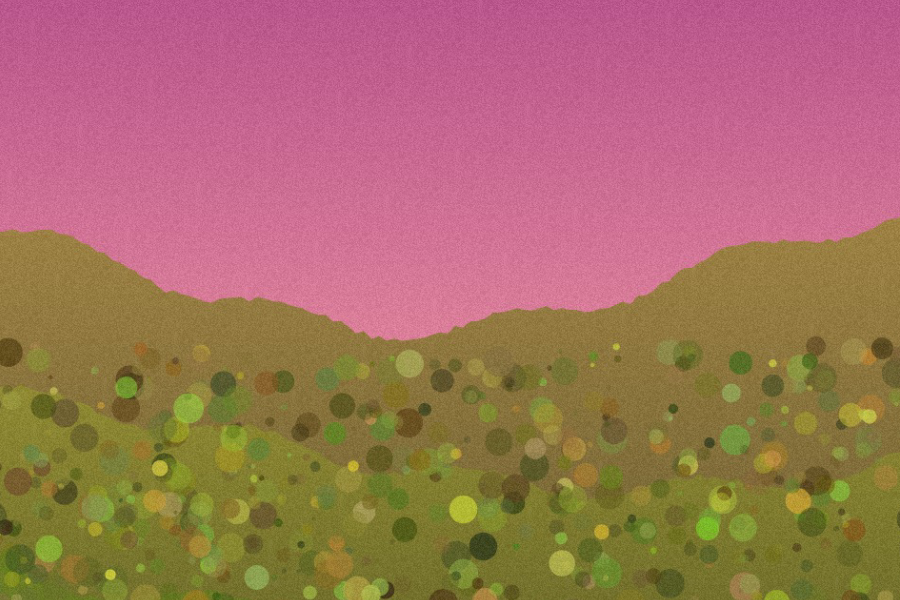
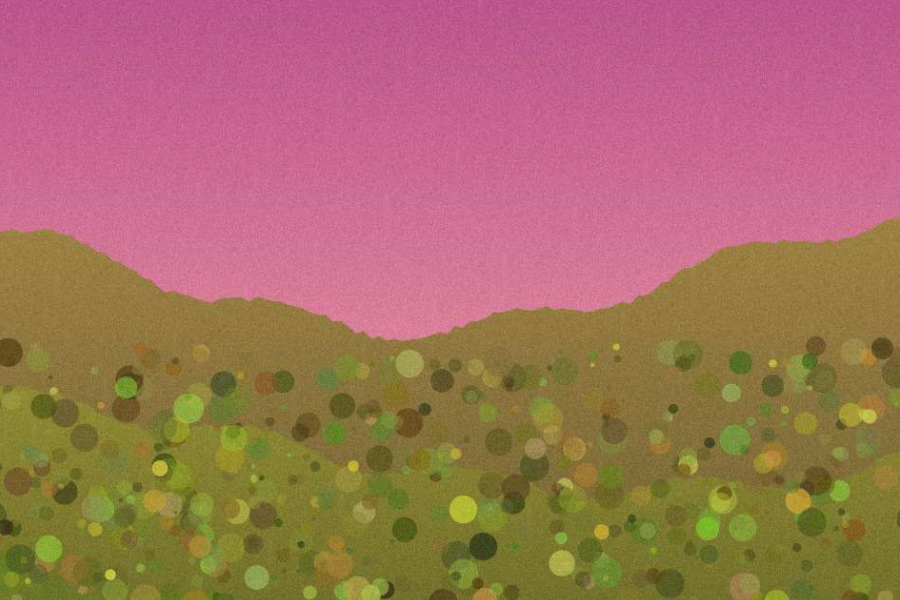
PSNR at 108 dpi is a coarse measure, so look at the pixels as well. These are 900 x 600 px crops of page 1 rendered at 216 dpi:
Compare it with the original scan crop, the original photo crop and the re-encoded photo crop. On the scan, small grey text stays readable at quality 60. On the photo, fine texture is visibly softer when you zoom in. Whether that is acceptable depends on the document. It usually is for a receipt being emailed and usually is not for a photography portfolio.
Results: runtime
Median of three runs, in milliseconds, on the laptop described above. Times include starting a qpdf process or making round trips to Chrome, so treat them as relative, not absolute.
| File | qpdf-lossless | qpdf-images-q60 | pdflib-resave | chrome-jpeg-q60 | qpdf-linearize |
|---|---|---|---|---|---|
| text-invoice | 13.7 | 13.0 | 1.4 | 1.5 | 5.4 |
| image-photos (4 x 2400 px JPEG) | 6.7 | 211.9 | 16.5 | 269.6 | 7.5 |
| scan-invoice (4 pages, 200 dpi) | 5.3 | 118.8 | 3.7 | 129.8 | 6.7 |
Decoding and re-encoding images is what costs time. Every structural operation finished in under 20 ms on these files.
The cases where files grew
This is the part most compression marketing leaves out.
- Linearization adds data. A linearized PDF contains hint tables and a reordered layout so that the first page can display before the whole file downloads. That cost 0.9% to 1.5% on the text files. Turn it on for large documents served over HTTP, not to save space.
- Re-optimizing an optimized file can grow it. Running qpdf's lossless method on its own output saved nothing (0 bytes). A pdf-lib re-save of the same file added 156 bytes, because pdf-lib writes its own object and cross-reference layout instead of keeping qpdf's tighter one.
- Re-encoding low-quality JPEGs at a higher quality grows them. The two images in
image-lowq.pdfwere saved at quality 0.45. Re-encoding them at 0.6 made them 4.6% larger in total (475,497 to 497,279 bytes of image data). The file also lost a little more fidelity (PSNR 46.4 dB against the input), because each JPEG generation adds new artifacts. With the "only if smaller" check, both the Chrome method and qpdf kept the original images, and the file stayed essentially the same size.
The practical lesson: a compressor that does not compare before and after can make files larger and worse at the same time. If a tool reports little or no saving on a file, that is often the correct result.
Choosing a method
| Your PDF is mostly... | What helps | What to expect, based on this benchmark |
|---|---|---|
| Text and vector graphics from a modern generator | Lossless restructuring (object streams, Flate level 9) | Small savings, around 10% here, with no visual change |
| Photos or screenshots saved as JPEG | Lower JPEG quality and/or downsampling | Large savings are possible, with visible softening at high zoom |
| Scans | JPEG re-encode now. For long-term storage, consider rescanning at a sensible resolution or using bitonal compression | Large savings here. Check that small print stays legible |
| Already compressed | Usually nothing | Expect roughly 0%. Avoid tools that do not check the result |
If you generate PDFs yourself, the cheapest compression happens before the PDF exists. Resize images to the size they will be displayed at, avoid embedding full-resolution photos for thumbnails, and do not embed fonts you do not use. The HTML to PDF CSS guide covers the print CSS side of that.
Where SublimePDF fits
The browser Compress PDF tool runs in the page and re-encodes embedded JPEG images, the general approach emulated by chrome-jpeg-q60 above. Its levels differ from the benchmark setting: Light uses JPEG quality 80 at original dimensions, Balanced quality 70 with images limited to 2000 px on the long side, and Strong quality 50 limited to 1200 px. Like the guarded methods here, it keeps a re-encoded image only when it is smaller (by at least 5%). The tool levels were not benchmarked, so the percentages above do not apply to them directly. It does not rewrite text or vector content, so expect little change on text-only files and larger reductions on photo or scan PDFs. Some files will not shrink at all.
If you generate the PDFs yourself, for example with the HTML to PDF API, the results above point to the cheapest fix: reference images at the size they will be displayed, because the generated text and layout are already compact. For the trade-offs of processing files in the browser rather than on a server, see client-side PDF processing.
The SublimePDF API also has a POST /compress endpoint for server-side workflows. This benchmark did not test that endpoint, and its compression settings are not part of the published contract, so measure it on your own documents before relying on a particular result.
Reproduce the benchmark
The script needs Node.js, the repository's pdf-lib, pdfjs-dist and playwright-core packages, Google Chrome or Playwright's Chromium, and qpdf on your PATH.
node scripts/research/compression-benchmark/run.mjsIt rebuilds the corpus, runs every method three times, and writes public/samples/fixtures/compression-benchmark/results.json, the outputs, and the detail crops. Outputs within 10% of a large input's size (for example, a lossless pass over the 5.5 MB photo PDF) are measured but not kept, to save space. Rebuilding the corpus is not guaranteed to be byte-identical, because canvas JPEG encoding can vary. The published corpus files are the reference inputs for the numbers on this page.
To test a single file of your own with the qpdf methods:
qpdf --object-streams=generate --compress-streams=y --recompress-flate --compression-level=9 in.pdf lossless.pdf
qpdf --optimize-images --jpeg-quality=60 --object-streams=generate --compress-streams=y in.pdf images-q60.pdf
qpdf --check images-q60.pdf
ls -l in.pdf lossless.pdf images-q60.pdfLimitations
- Six files, all synthetic or self-produced. Real-world PDFs with mixed content, embedded fonts from desktop apps, PNG screenshots or JBIG2 scans will behave differently.
- One machine and three runs per method. Runtimes include process and browser overhead.
- PSNR at 108 dpi understates fine-detail loss in the 2400 px photos. Use the 216 dpi crops for visual judgement.
- PDF.js rendering is not perfectly deterministic: byte-identical files occasionally differed by a few pixels (PSNR about 75 dB). We treat anything above about 70 dB as identical.
- Ghostscript, Adobe Acrobat and online compressors were not tested. Downsampling, a common lossy setting, was not tested separately.
If you want a step-by-step guide to shrinking a file rather than benchmark data, read how to compress a PDF and reduce file size.
Sources
- qpdf manual: command-line options · accessed 22 November 2026
- pdf-lib API documentation: PDFDocument.save · accessed 22 November 2026
- HTML Standard: HTMLCanvasElement toBlob / OffscreenCanvas convertToBlob (image quality argument) · accessed 22 November 2026